Automatically Including Files
In some cases, you may want to include additional files to support the transactions you are sending. The ATE module provides support for both the NetSuite Drag and Drop functionality as well as directly using the file cabinet.
Overview
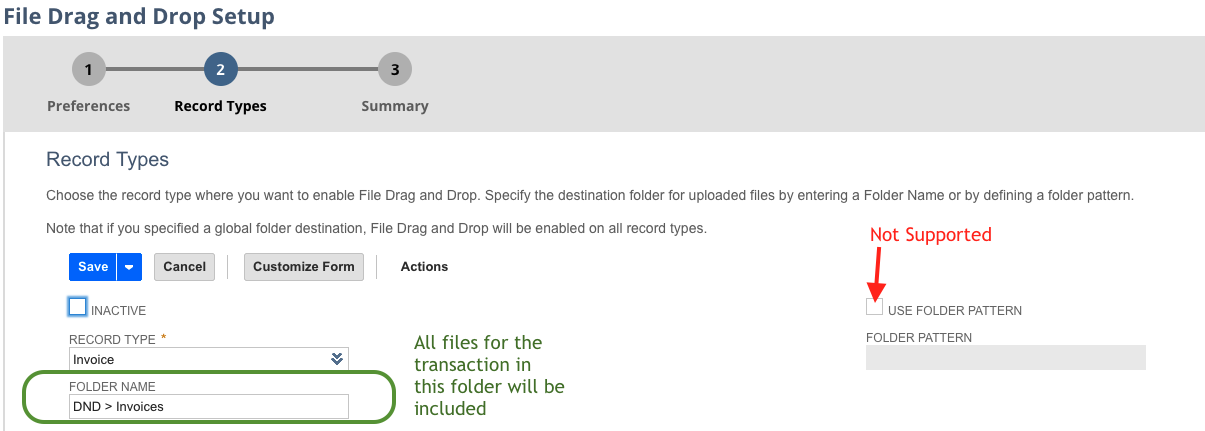
Two options are available for each transaction type to include documents when the transaction is sent to the customer, they are:
Option | Description |
|---|---|
Use File Drag and Drop | This will use the settings from the NetSuite File Drag-and-Drop suiteapp. Note that the Use Folder Pattern is not supported. |
NetSuite Folder IDs | A comma-separated list of NetSUite folders that you want to search for the specified transaction |
Set-up Considerations
When and how to send the email
It is most likely that the documents will be attached to the transaction at some point after it is created. The process could work like the one following:
Manually via a workflow trigger
Set the Default Email Preference to Do Not Send
Upload files as required
Have a workflow that adds a button or initials on a status change (for example, Pending Approved to Open), and when executed, it sets the ATE Preference to To Send
The documents will be emailed as per your setup
Automatically via the Automatic Bulk Send
Set the default status to the Automatic Bulk Send option
Set the deployment to an appropriate time when all the documents will be loaded, i.e. after business hours, on a Friday, whatever works for your team.
File Options
If both options are ticked, the email will include all files from both areas. If you include documents that you do not wish to to email, put them in another folder